Tech/NextJS
NextJS + Typescript + tailwindCSS 세팅하기
닝닝깅
2023. 8. 20. 17:39
개요
평소 스타일링 도구는 styled-components를 주로 사용했었으나 이번에 Next를 경험하게 되면서 가장 호환성이 좋은 tailwindCSS를 사용하게 되었다. 새로운 기술 투성이라 기록으로 남겨 기억하기 위해 작성하게 됐당
세팅 방법
1. 프로젝트 생성하기
$ npx create-next-app@latest my-project --typescript --eslint
$ cd my-project
2. TailwindCSS 설치하기
$ npm install -D tailwindcss postcss autoprefixer
$ npx tailwindcss init -p
설치 후 init 명령을 실행하면 tailwind.config.js와 postcss.config.js 파일이 자동 생성된다.
3. tailwind.config.js의 path 설정하기
module.exports = {
  content: [
    "./app/**/*.{js,ts,jsx,tsx,mdx}",
    "./pages/**/*.{js,ts,jsx,tsx,mdx}",
    "./components/**/*.{js,ts,jsx,tsx,mdx}",
  ],
tailwind를 적용시킬 파일들의 path를 설정한다.
기존 참고 자료들과 동일하게 경로를 위와 같이 설정하였으나 tailwind가 적용이 되지 않는 이슈가 발생하였다.경로를 src 디렉토리 전체로 설정하였더니 정상적으로 적용이 되었다.
module.exports = {
  content: [
    "./src/**/*.{js,ts,jsx,tsx,mdx}",
  ],
4. global.css에 @tailwind 추가하기
@tailwind base;
@tailwind components;
@tailwind utilities;
** WARNING **
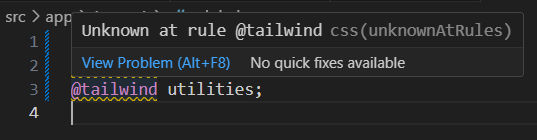
VSCode를 사용하고 있다면 global.css에서 해당 경고가 발생한다.
@tailwind를 알 수 없는 키워드로 분류하기 때문에 발생하는 경고로 확장프로그램 PostCSS Language Support를 다운받으면 해결할 수 있다.
5. tailwind 사용
Tailwind 공식사이트에서 적용하고 싶은 style을 검색하여 문법을 확인한다.
해당 문법을 태그의 classname으로 추가하면 style을 입힐 수 있다.
Flowbite에서 TailwindCSS를 활용한 여러가지 디자인 예시를 볼 수 있다.